 Hardware Configuration
Main
Hardware Configuration
Main
Applies to
neoVI Blue, neoVI Red,
neoVI FIRE, neoVI Yellow,
and ValueCAN
Overview
Basic hardware configuration
for neoVI and ValueCAN is done through Intrepid Hardware Explorer. This
can be found in Vehicle Spy. This is done by
clicking the "Setup Hardware" Button ( )
or by selecting Setup then Hardware from the menu bar (Figure 1).
Clicking on the "Hardware Setup..." button will bring up the Hardware Explorer
(figure 2).
)
or by selecting Setup then Hardware from the menu bar (Figure 1).
Clicking on the "Hardware Setup..." button will bring up the Hardware Explorer
(figure 2).
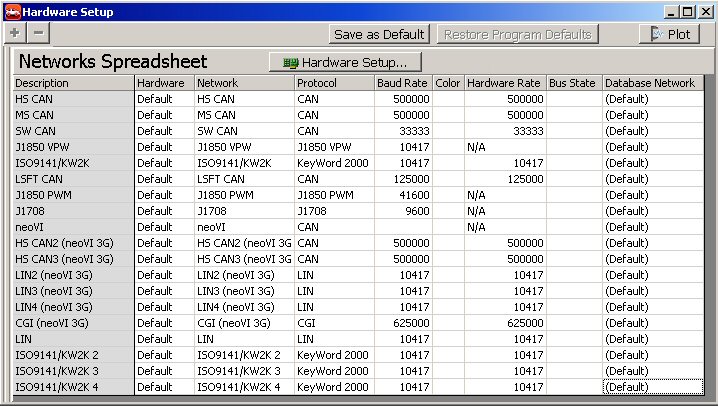
Figure 1 - Network Setup SpreadSheet
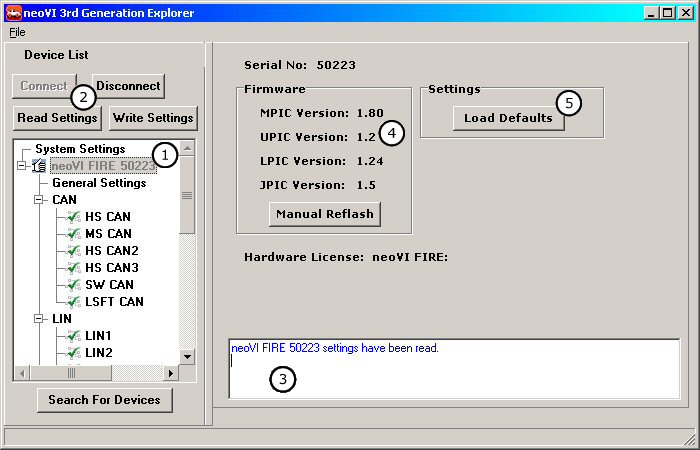
Figure 2 - neoVI Hardware Explorer
Connecting to a neoVI
You can select the device you want to connect to by selecting it in the list on the left (figure 2 : bubble 1). The "Connect" button (figure 2 : bubble 2) will connect to the hardware and read the settings currently stored in the device. The status window (figure 2 : bubble 2) notifies you if there are any issues talking to the hardware. The firmware versions are shown under Firmware (figure 2 : bubble 4). Device settings can be set to defaults by clicking on the Load Defaults button (figure 2 : bubble 5) in the upper right.
| neoVI Documentation - (C) Copyright 2000-2020 Intrepid Control Systems, Inc. |
Last Update: Thursday, July 09, 2009