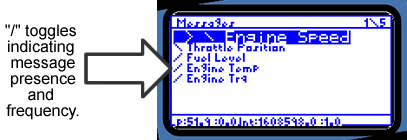
Figure C3: Viewing Messages
neoVI PRO Stand Alone Mode - Vehicle Spy Mini Mode
Viewing Messages
Figure C3: Viewing Messages
When you select the Messages
heading, you will see a list of all available messages. Notice the “/” or "?" is
visible when using neoVI PRO to view messages. The "?" means the
message was never received. The "\" toggles to indicate that
the selected message is present and its frequency. Press the  button
 to clear the stats for a particular message and all defined signals. Highlight
a particular message using the directional pad and then click the
button
button to clear the stats for a particular message and all defined signals. Highlight
a particular message using the directional pad and then click the  button.
The Message Summary screen will appear.
button.
The Message Summary screen will appear.
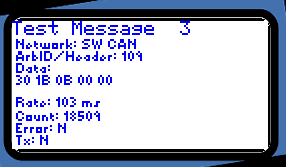
Figure C-4: Message Summary Screen
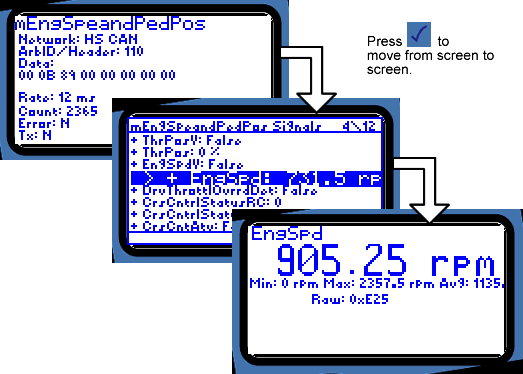
Figure C-5: Message Summary Screen -> Message's Signals
List-> Signal
Details
The Message Summary displays message description,
network, arbitration ID/header, databytes, rate, count, and errors. Click again
to see signals defined for this message. Highlight a specific signal using
the up and down buttons. Select a specific signal and press
again to see signal details.
With desired signal highlighted
in the messages's Signal List screen or displayed in Signal Details, press
the button
to clear stats for the signal. (Stats for the other signals and entire
message will remain.)
Remember: Press  at
any time to return to the previous screen.
at
any time to return to the previous screen.
| < Previous | Back to Table of Contents | Next > |