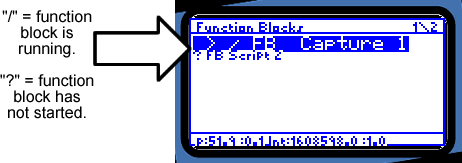
Figure C-7: Launching Function Blocks
neoVI PRO Stand Alone Mode - Vehicle Spy Mini Mode
Using Function Blocks
Figure C-7: Launching Function Blocks
To use Function Blocks, first set them up in Vehicle Spy. Go to “View”, “Vehicle Networks”, and then “Function Blocks”. Select Function Block type and then set it up accordingly. The Vehicle Spy Summary Screen in neoVI PRO will list all function blocks you have created. The toggling “/” indicates the function block is running. A "?" means that it is not. Use the directional pad to move up and down the list.
Clicking  will
start the highlighted Function Block if it is not already running. If it is
already running clicking will
stop it. The
will
start the highlighted Function Block if it is not already running. If it is
already running clicking will
stop it. The  button will
cause the function block to save its data. The
button will
cause the function block to save its data. The  button
will trigger the function block.
button
will trigger the function block.
Clicking the  Function
Block Status Screen will appear. Specific status of the running function block
will be displayed in text. All of the button functionality mentioned above
for the Function Block List screen is available
while viewing this screen as well.
Function
Block Status Screen will appear. Specific status of the running function block
will be displayed in text. All of the button functionality mentioned above
for the Function Block List screen is available
while viewing this screen as well.
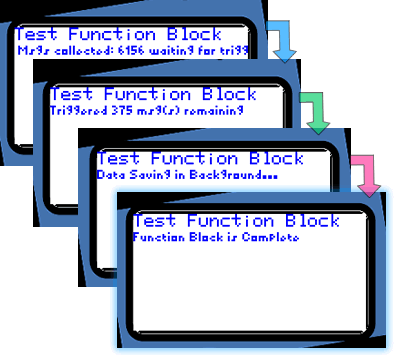
Figure C-8: "Test Function Block" runs
and status is displayed.
| < Previous | Back to Table of Contents | Next > |