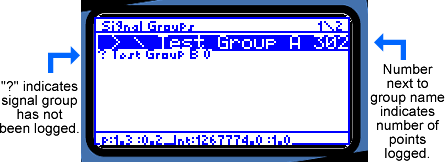
Figure C-11 : Signal Group screen shows two signal grous available.
neoVI PRO Stand Alone Mode - Vehicle Spy Mini Mode
Signal Groups
To use Signal Groups, first set them up in Vehicle Spy. Save your setup file and copy it to neoVI PRO. Select Signal Groups from the Vehicle Spy Summary Screen. A list of available groups will appear.
Figure C-11 : Signal Group screen shows two signal grous
available.
A "/" to the left of the signal group name indicates that the group is being logged while the number to the right displays how many points have been logged. A "?" to the left of a signal group name indicates that the group has not been logged.
Choose the desired group by highlighting it with
the directional pad and then clicking the  button.
neoVI PRO will display a screen with the selected signal group name at the
top. All signals included in the group will be listed. If the list is too long
or wide to fit on a single screen, use the directional pad (up, down, left,
and right) to adjust visible area.
button.
neoVI PRO will display a screen with the selected signal group name at the
top. All signals included in the group will be listed. If the list is too long
or wide to fit on a single screen, use the directional pad (up, down, left,
and right) to adjust visible area.
Press the  button
to start and stop logging.
button
to start and stop logging.
A "+" to the left of a signal name indicates the signal is valid. Otherwise, you will see a "-" to the left of the signal name.
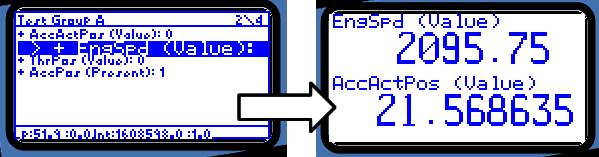
Figure C-12: View Signal Groups
Highlighting a specific signal and clicking will
open a signal close-up screen. The selected signal will be displayed in a large
font for easier reading. If you previously viewed a signal from this group,
it will be shown at the bottom. If you wish to return to the entire list, simply
press the  button.
| < Previous | Back to Table of Contents | Next > |